
August 29, 2025
How do I enable a VPN on a business iPhone?

Wondering how to enable a VPN on your business iPhone? This guide shows you the setup process, explains VPN challenges, and outlines stronger security alternatives for enterprise mobility.
If your company has asked you to use a VPN on your business iPhone, you might be wondering: What exactly is a VPN? How do I set it up? And is a VPN really enough to keep work data secure?
This guide walks you through:
- What a VPN is and why your employer might require it
- Step-by-step instructions for enabling a VPN on an iPhone
- The limitations and challenges of VPNs for enterprise security
- Alternatives to VPNs that organizations should consider for broader protection
Understanding VPNs for work use
A VPN (virtual private network) encrypts internet traffic and routes it through a secure server, masking your IP address and making it harder for outsiders to monitor your activity. When it comes to VPNs for consumers, the most common benefit is privacy while browsing on public Wi-Fi. For an enterprise VPN, the goal is to secure access to corporate resources, especially when employees are working remotely.
If you’re carrying a business iPhone, your IT team may want you to connect through a VPN before accessing email, cloud services, or internal applications. But as we’ll cover later, a VPN alone is not a complete security strategy for enterprise mobility.
Step-by-step: How to enable VPN on an iPhone
These steps will work on most iPhones running recent versions of iOS. Your organization may provide you with the VPN configuration, or you may be given login credentials for a commercial provider.
Note: This example uses DuckDuckGo’s hypothetical VPN service for illustration only. There are many VPN providers to choose from, and your IT team will tell you which one to use.
Step 1: Open Settings
On your iPhone’s Home Screen, tap the Settings app (gray icon with gears).

Step 2: Go to VPN Settings
Scroll down, tap General, then select VPN & Device Management (or just VPN on some versions).

Step 3: Add a VPN Configuration
Tap VPN, then choose Add VPN Configuration…

Step 4: Select a VPN Type
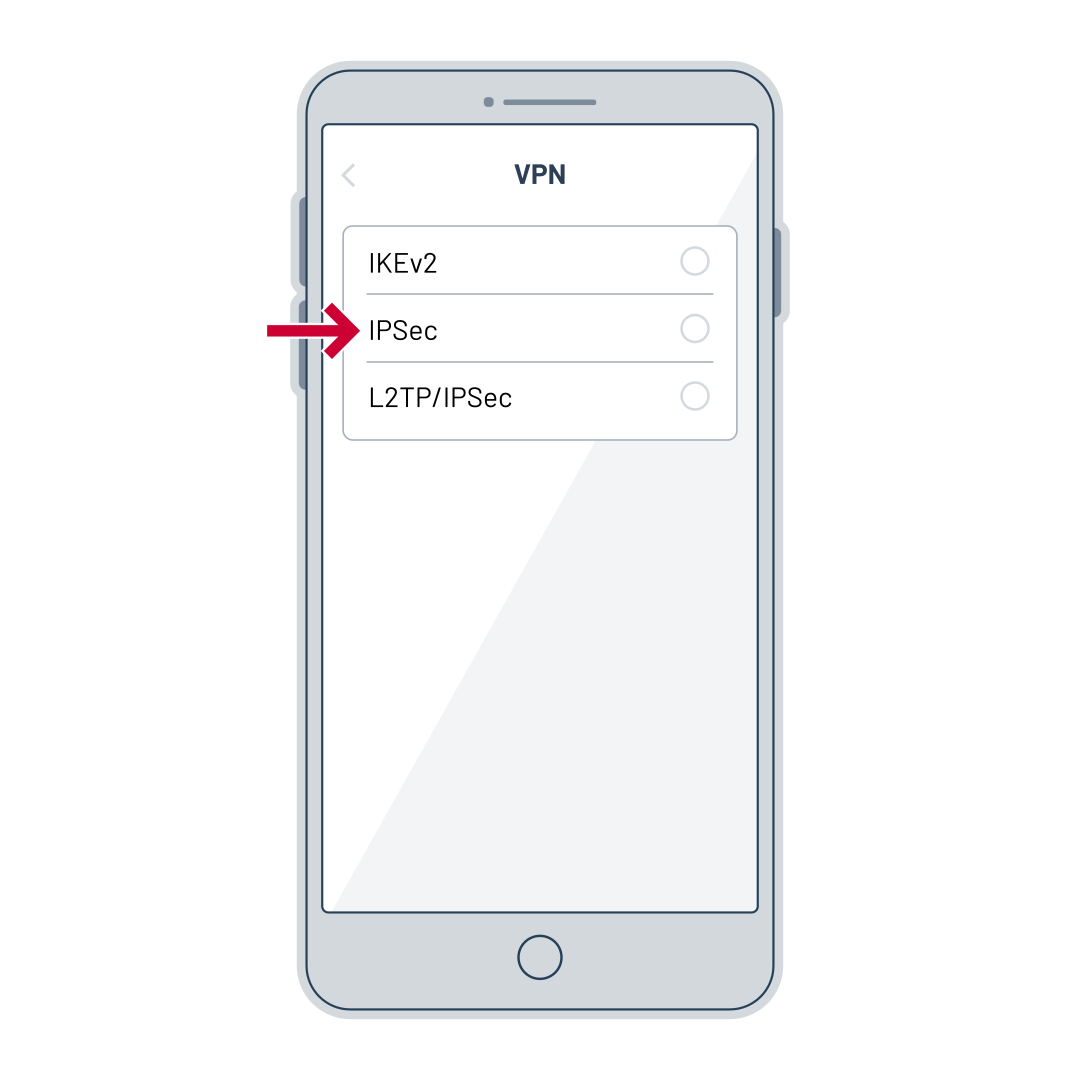
Choose IKEv2 (most common), IPSec, or L2TP/IPSec. Your VPN provider will tell you which to use.
Step 5: Enter VPN Details
Fill in the fields given by your VPN provider:
- Description: e.g., “DuckDuckGo VPN”
- Server: VPN server address
- Remote ID: Provided by your VPN provider
- Authentication: Username/password or certificate
(Fields may vary based on VPN type.)

Step 6: Save & Connect
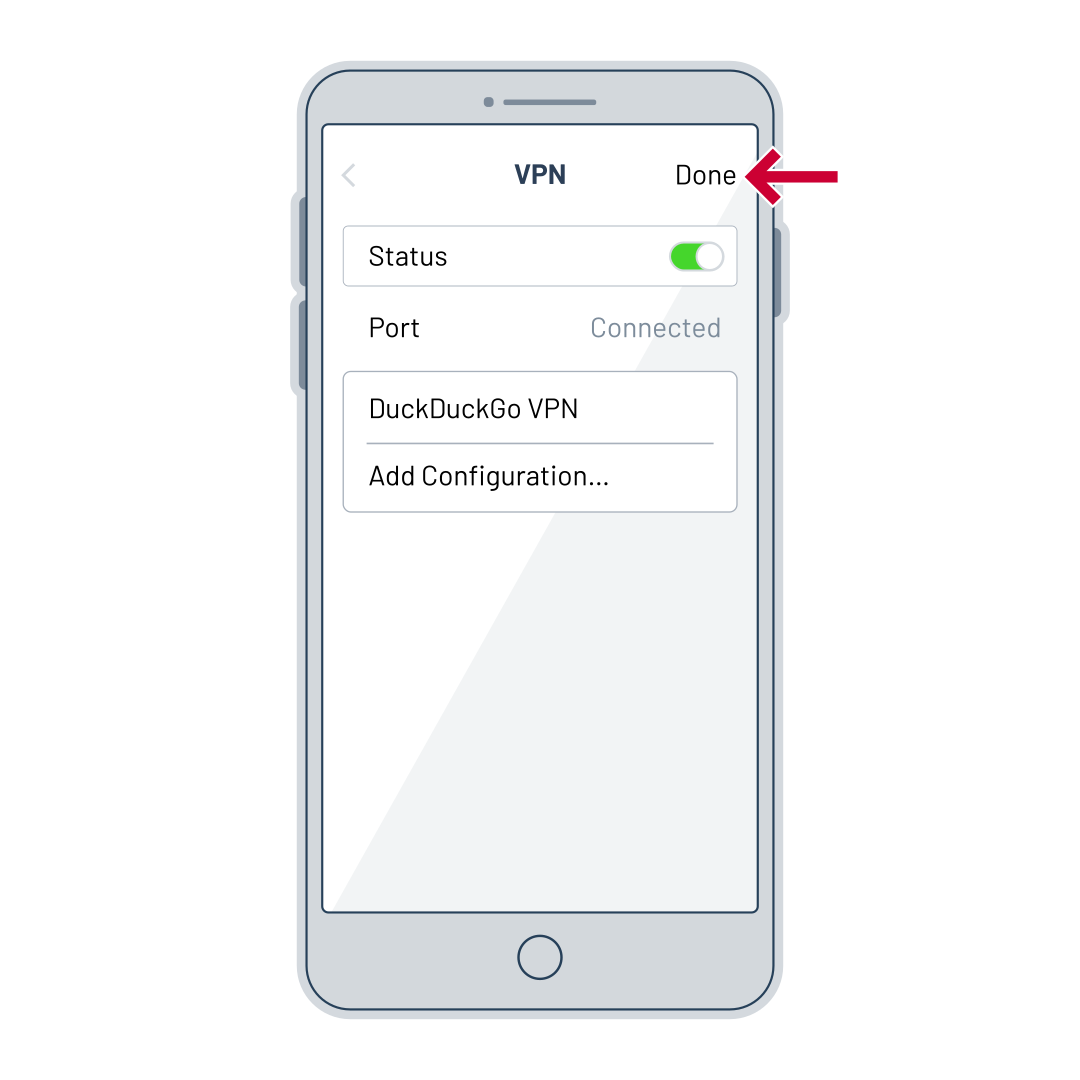
Tap Done, then toggle the VPN switch to On. A “VPN” icon will appear in your status bar when connected.
Step 7: Test Your VPN
Open a browser or app and confirm access. Use a “What’s My IP” site to verify your location has changed. An IP lookup site will show information related to your current IP's location (including city, region, and country).
VPN problems and VPN challenges for businesses
While VPNs are a valuable tool, they’re not a magic shield for enterprise mobility. Organizations often face these challenges:
1. Performance issues – VPN traffic is routed through a secure tunnel, which can slow down connections.
2. Scalability limitations – As the number of remote workers grows, so does the demand on VPN servers.
3. Device vulnerabilities – A VPN does not protect against malware already present on a device.
4. User compliance – If employees forget to turn on the VPN, they may expose sensitive data.
5. Single point of failure – If the VPN server goes down, remote work access stops entirely.
Is a VPN secure enough?
Many employees ask: Do VPNs protect iPhones? The answer: partially. A VPN encrypts network traffic, but it doesn’t stop phishing attacks, stolen credentials, or unauthorized access if someone gets hold of your device.
From a business perspective, the question isn’t, is a VPN secure enough?, but rather, is a VPN enough on its own? The reality is that VPNs for enterprise should be just one piece of a larger access control strategy.
What are VPN alternatives?
Some alternatives to VPNs for businesses include:
- Zero Trust Network Access (ZTNA)
- Single Sign-On (SSO)
- Mobile Device Management (MDM)
- Privileged Access Management (PAM)
Ideally, these tools should be used together along with multifactor authentication (MFA) to create a layered security strategy that better fits enterprise mobility needs.
The enterprise mobility perspective
If your organization provides shared mobile devices — like iPhones for on-call medical staff or field technicians — VPN use becomes more complex. Devices may pass through multiple hands in a day, making secure authentication and session control even more critical.
In such environments, VPNs alone cannot verify who is using the device, only that the device is connected. That gap is a major reason many organizations are adopting broader access management frameworks that include secure, shared, mobile access management.
VPNs are a starting point, not the finish line
For employees, learning how to enable a VPN on an iPhone is a useful skill — it’s quick, straightforward, and helps protect data in transit.
For businesses, VPNs still serve a purpose, but relying solely on them for strong cybersecurity is risky. A wider access management policy — one that seamlessly combines identity verification, device management, and activity monitoring — is essential for protecting corporate resources in today’s mobile-first workplace.
Imprivata helps organizations move beyond VPN-only thinking, integrating identity and access management into every layer of enterprise mobility security. To protect shared mobile devices and sensitive systems without slowing down workflows, organizations need to reframe VPNs as only one component of a larger security strategy.
If you are ready to align your security and user experience strategy with mobile deployments, reach out to us today for a hassle-free, no obligation demo on how Imprivata can redefine shared mobile success.